
Need a quick way to draw circuits or connection diagrams? In this quickstart Circuit Canvas tutorial I’ll show you how to get up and running with Circuit Canvas in a matter of a few minutes.
Circuit Canvas is a free web app that makes it fast and easy to draw good-looking schematics and real-world wiring diagrams — no installation needed, just a browser.
I love it because it makes me able to draw up simple circuits in a matter of seconds.
Here’s a quick overview:
Step 1: Create your account
Go to circuitcanvas.com and create your free account. You’ll get an email with a verification link — click it and you’re in.
Step 2: Start a new project
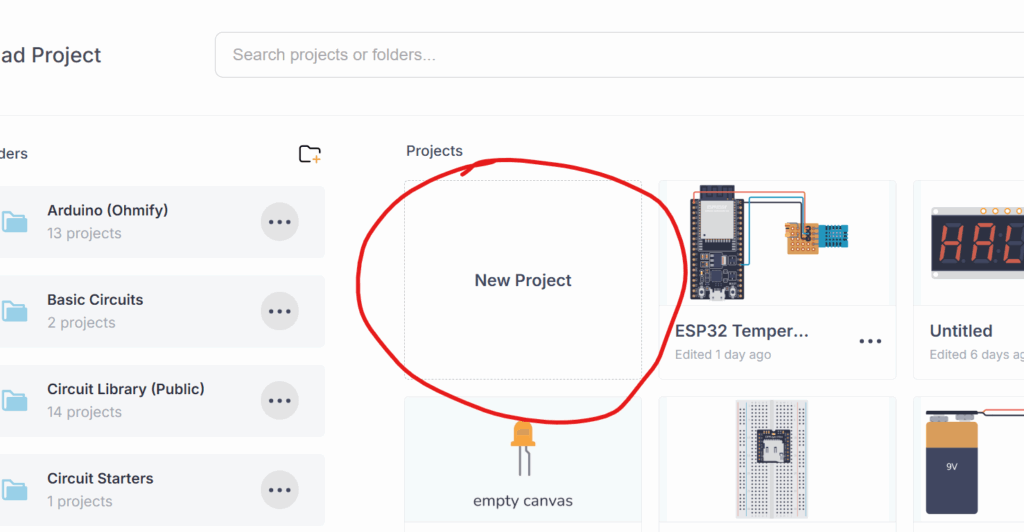
When you log in, you’re taken to Home, where all your projects are stored. Click New Project and give your project a name.
Step 3: Draw a schematic
Click or drag components from the component library into the canvas. Place them where you want, and rotate them with R on your keyboard.
To draw a wire, click on a pin to start, then click another pin to finish.
Get Our Basic Electronic Components Guide
Learn how the basic electronic components work so that circuit diagrams will start making sense to you.
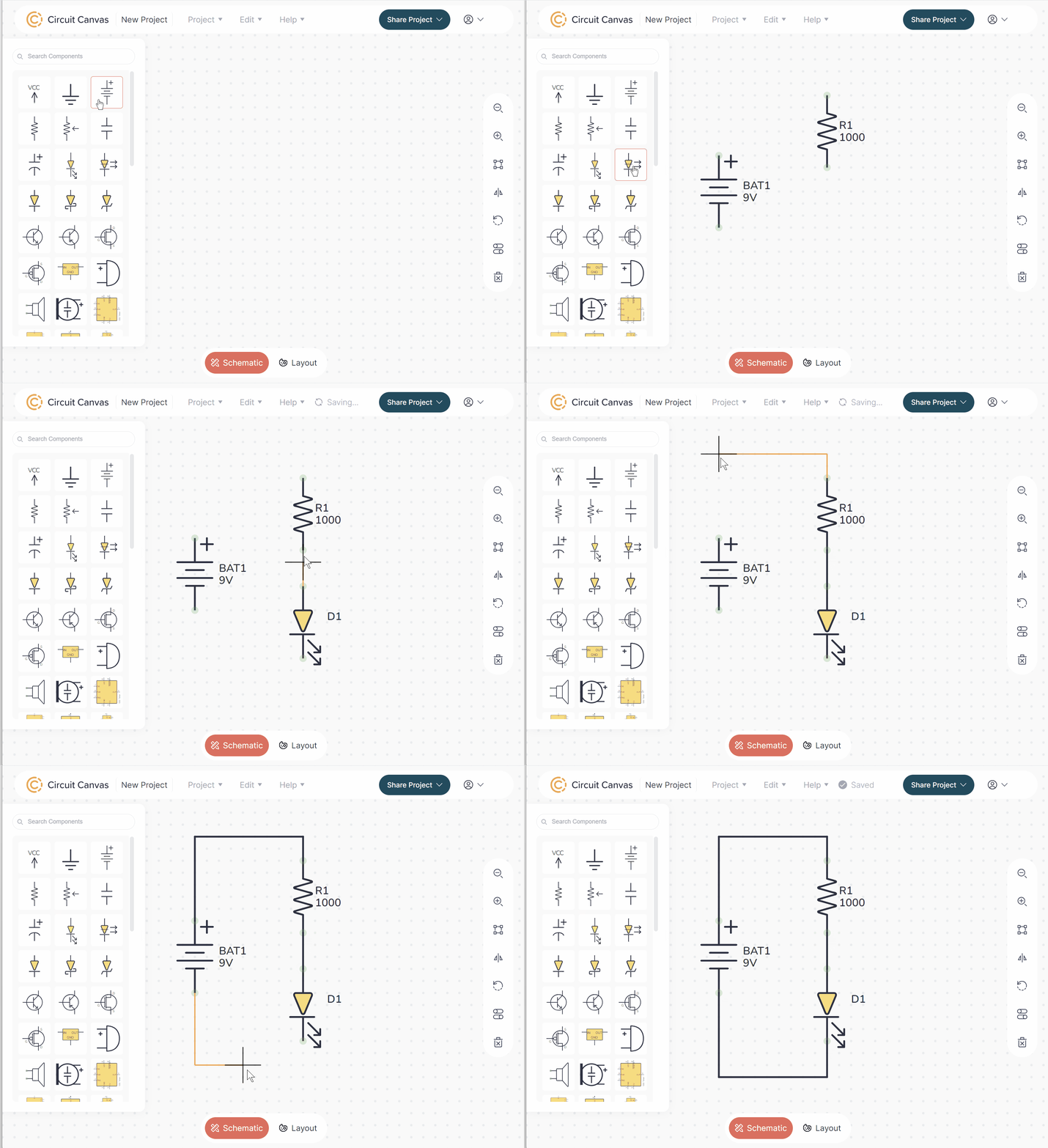
If you drag a component, it’s connected wires will follow. If you want to move a component without the wires following along, press M on your keyboard while hovering your mouse over the component.
Your project is automatically saved in the background.
To download an image of your circuit, go to Export as Image.
There you can choose between various formats such as svg, png, or copy the image directly to your clipboard so that you can easily paste it into an email or a forum post.
Step 4: Plan your real-world connections with Layout
Sometimes all you need is the schematic. Other times you might want a diagram of how to actually connect the circuit in real life — that’s what Layout is for.
In layout you can plan or document your connections using a prototyping board, perfboard, or just plain wires.
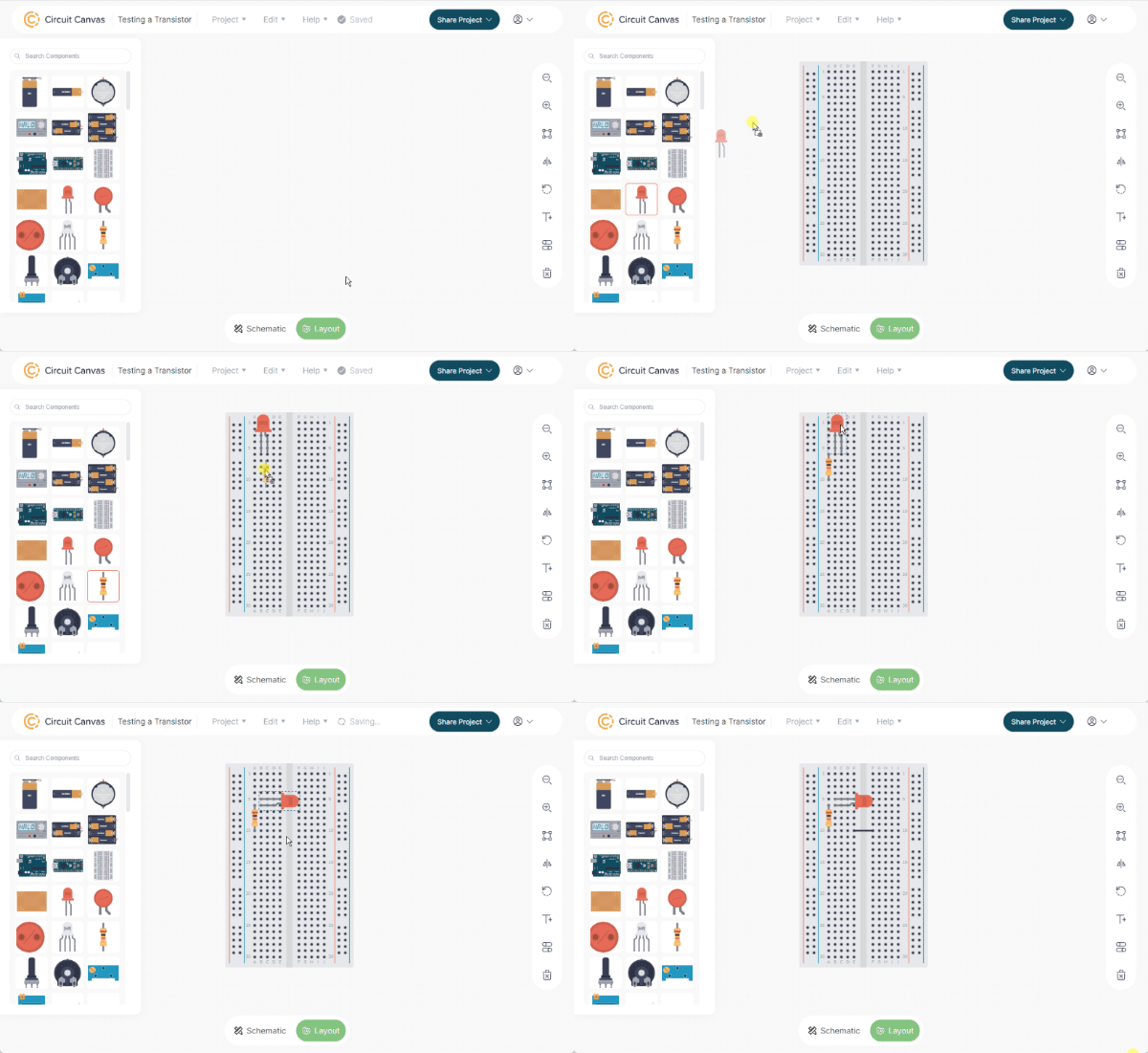
You draw wires the same way as in schematics. To finish a wire outside of a pin, double-click. To start a wire outside of a pin, press W.
Double-click a wire to change its color.
Flip components with F.
Step 5: Share your project
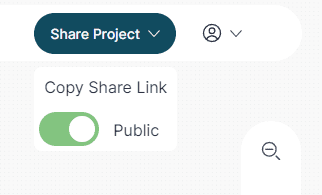
Once you’re happy with your project, set it to Public if you want to share it.
Now, anyone with the link can view your project, or duplicate it to make their own modifications.
That’s a quick Circuit Canvas tutorial for you! You should now be up and running.
A good next step is to practice by drawing a simple project. A good first project to try is a simple LED circuit.
More Circuit Building Tutorials
10 Simple Steps to Learn Electronics
Electronics is easy when you know what to focus on and what to ignore. Learn what "the basics" really is and how to learn it fast.